Simplify

Activation Guide

ACTIVATION

Activate Your Simplify Digital Card

Setting up your SIMPLIFY digital business card is SIMPLE and takes under 2 minutes. 

Here’s a handy walkthrough for creating your first SIMPLIFY card

Execute the steps below one by one or follow along the video at the end of this page, and you’ll be set up in no time.

Activation Options:

Wallets allow you to sync up to three cards, so if you lose, steal, or damage your main card, you can still use your wallet.

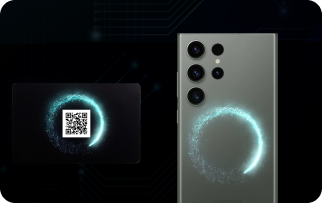
Option 1: TAP

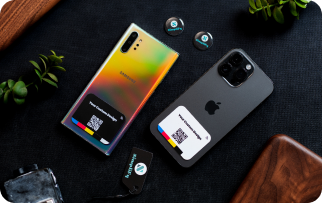
Ensure NFC is enabled on your smartphone.

Option 2: SCAN

Ensure NFC is enabled on your smartphone.

IPhone:

· Make sure your phone is lit up before tapping

· Tap your card on the top of the phone

Android:

· Make sure your phone is lit up before tapping

Open your camera / Qr code scanner and scan the Qr code on the back of your card.ne is lit up before tapping

And then open the notification link

Get Started!

Activation Guide

Account Setup

Enter your full name, your personal login e-mail address, new password and confirm your password.

You receive an email from info@simplify-card.com to verify your email address, (make sure you check your junk box also).

Then click on “Verify Email Address”. A Login page opens, add your email and password.

You’ll be directed to your personal Simplify account.

Starting with the Profile section in the left menu. This is where you can create your Simplify profile, showcasing your professional identity and personal brand.

Profile Setup

01

Customize Your Appearance:

Customize the appearance of your profile by choosing your theme color.

02

Customize your photos:

Then click on Details, and upload your profile and cover photo.

2.1

Fill your Personal info:

Fill all contact info you would like to share wit your connections.

2.2

Fill your Contact info:

Fill all the information would like to share with your connections:

2.3

Share your social media:

Add social media links like Facebook, Instagram, Youtube, X, Linkedin, Tiktok…

2.4

Share your professional links:

Fill all the information would like to share with your connections:

03

Custom:

In this section, you can copy your simplify link, choose a different font and even lock your profile using a password.

04

Blocks

You can easily change the order of all the sections in your profile using drag & drop.

Explore Your SIMPLIFY Account:

1. Complete Overview:
Visit your personal Simplify account, which serves as a central hub for your dashboard, business, appointments, contacts etc.

2. Logout
Logout from your SIMPLIFY account on your homepage.

Congratulation!
You can now start using your SIMPLIFY CARD and experience the convenience it brings.
Use it to grow your network and your business.

Keeping Your Information Up To Date:

1. Edit your profile:
Log into your simplify account in our website www.simplify-card.com using your e-mail and password that you set up at the beginning of this process. Navigate to the profile section, edit your information, and click save changes. Your new data is now updated. It is that simple!

2. Automatic updates:
If you edit any information in your profile, your Simplify card automatically updates, so you never have to worry about giving out outdated information again.

Grow Your Network & Business Effortlessly

All you need is ONE card!

Tap your card against any smart phone that supports NFC and let the magic happen. You can also scan the Qr code on the back of the card for older phones.

Share your contact details and social media accounts by just one tap. People can save you contact details directly to their phone and also they can connect with you using the exchange button.
The exchanged contacts will be shown in the “CONTACTS” section of your simplify account. Where you can save these contacts one by one directly to you phone, or you can export them all on excel.

The free CRM system included with your digital business card is a powerful tool designed to streamline and enhance your customer relationship management efforts. With this CRM system, you can efficiently organize, track, and nurture your client interactions, all within a user-friendly interface.

Help Center

If you require any assistance or have any question regarding editing or creating your profile or anything else, our support team is here to provide guidance. You can also visit the FAQ and Tutorial links for more tips to use your simplify card
Contact Support

Follow Us

Follow us on our social media platforms and you will be the first to know about special offers and discounts from SIMPLIFY

Select more than one item for comparison.